User manual
Everything GibTalk does, step by step. The screenshots are from an Android tablet; phones, iPhones and iPads work the same way.
1. Talking with GibTalk
The first time
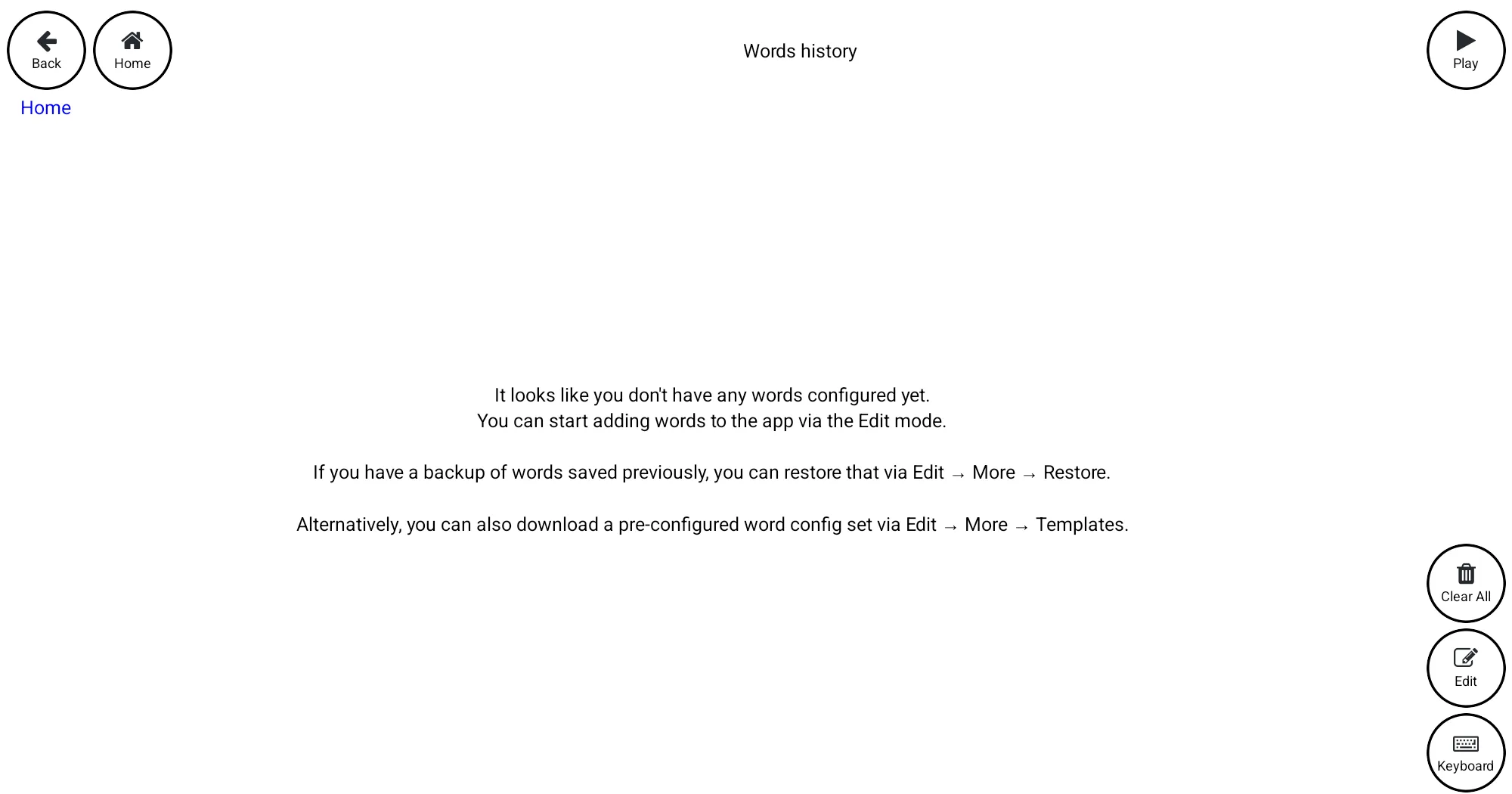
A new install starts with no words. To get going, either add your own words in edit mode, add a ready-made template, or restore abackup from another device.
The Home board
Once it has words, GibTalk opens on the Home board, a grid of picture tiles. This one was set up for a child at home and at school:
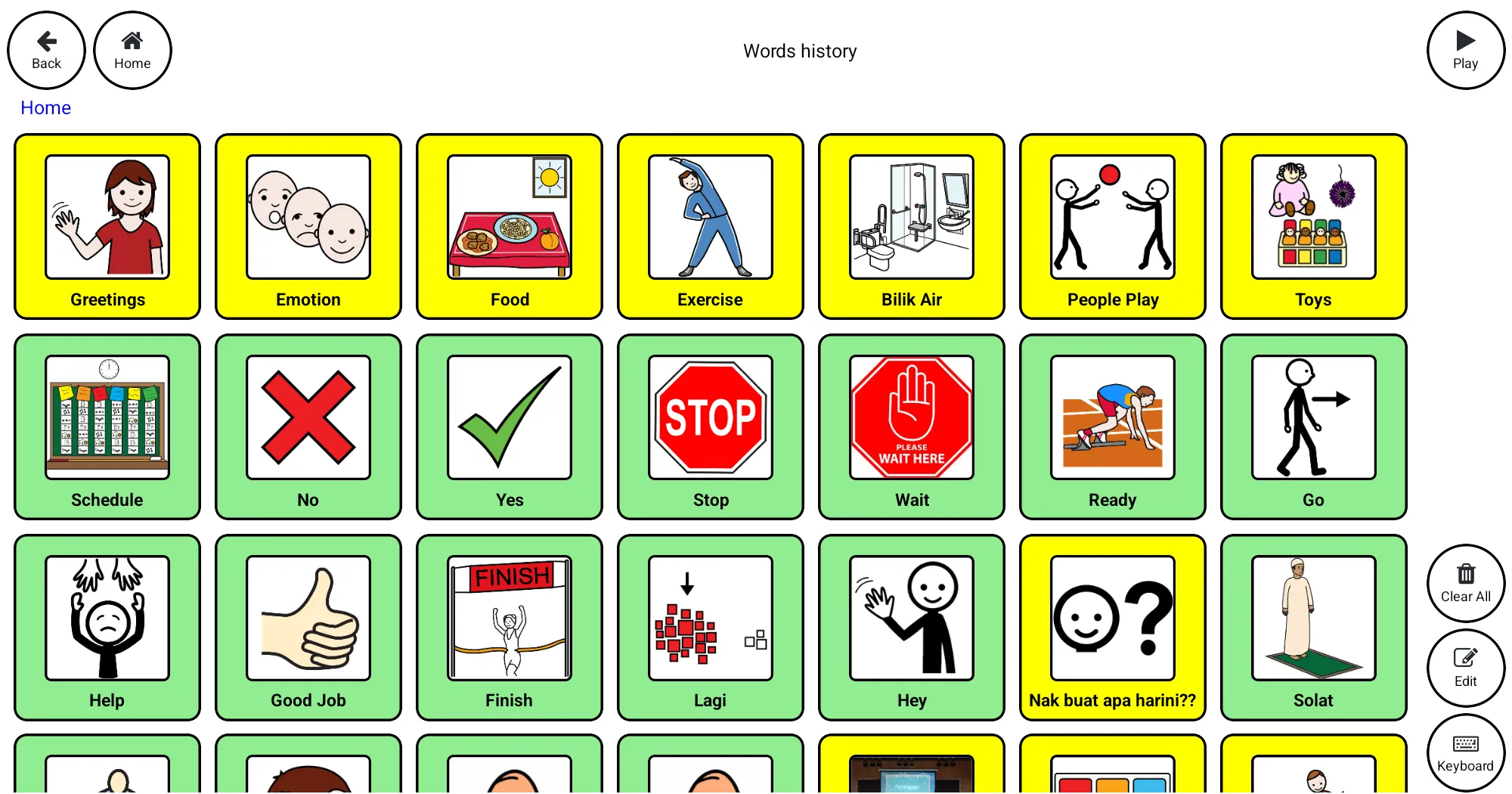
- Green tiles are words. Tap one and GibTalk says it.
- Yellow tiles are folders. Tap one to open it and see the words inside, for example Food.
- Back goes up one folder, Home goes straight back to the Home board. The line under the buttons (Home / Food) shows where you are; tap a name in it to jump there.
Making a sentence
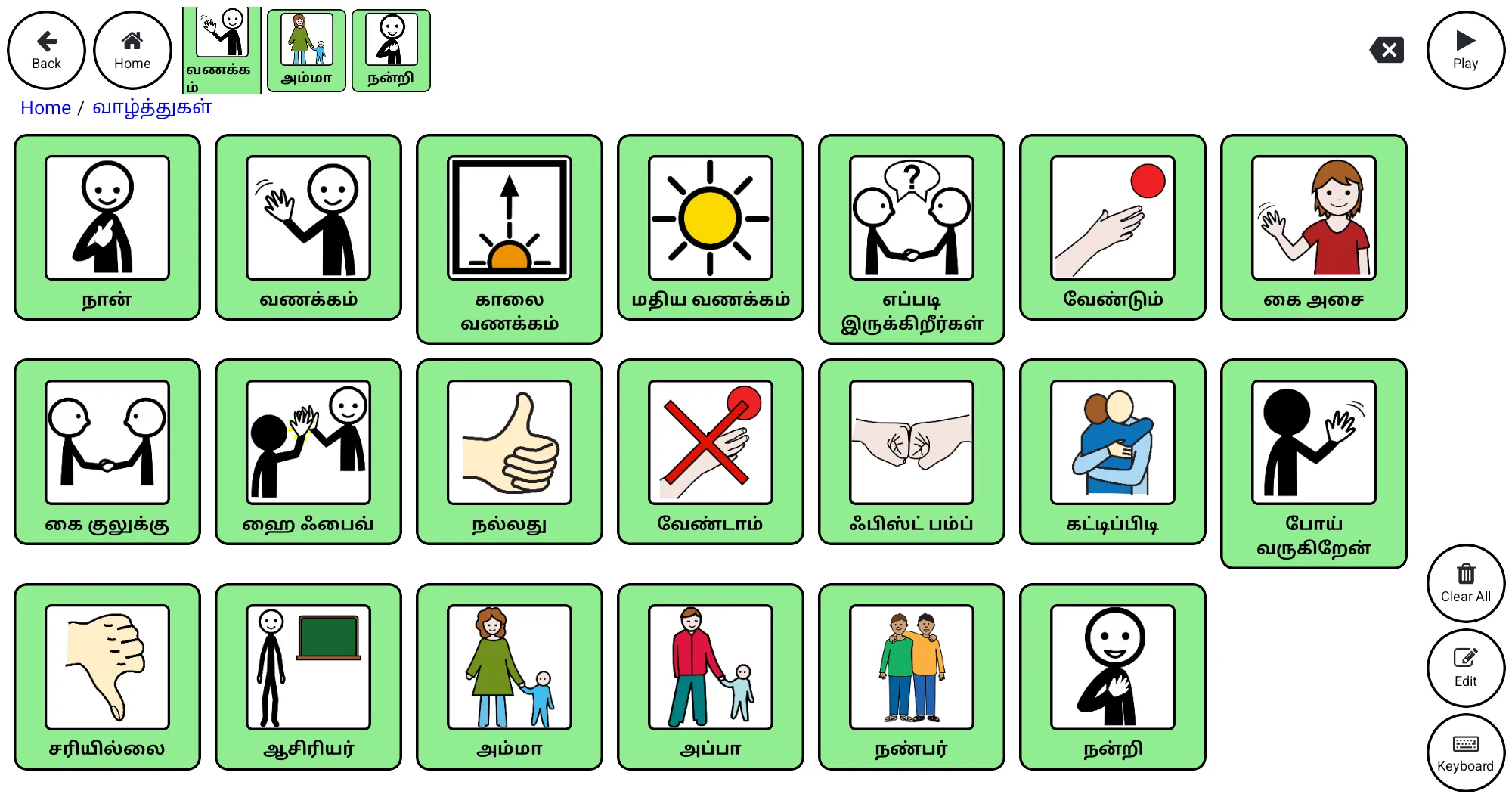
Each tile you tap is added to the bar at the top, so a child can build a sentence one picture at a time.
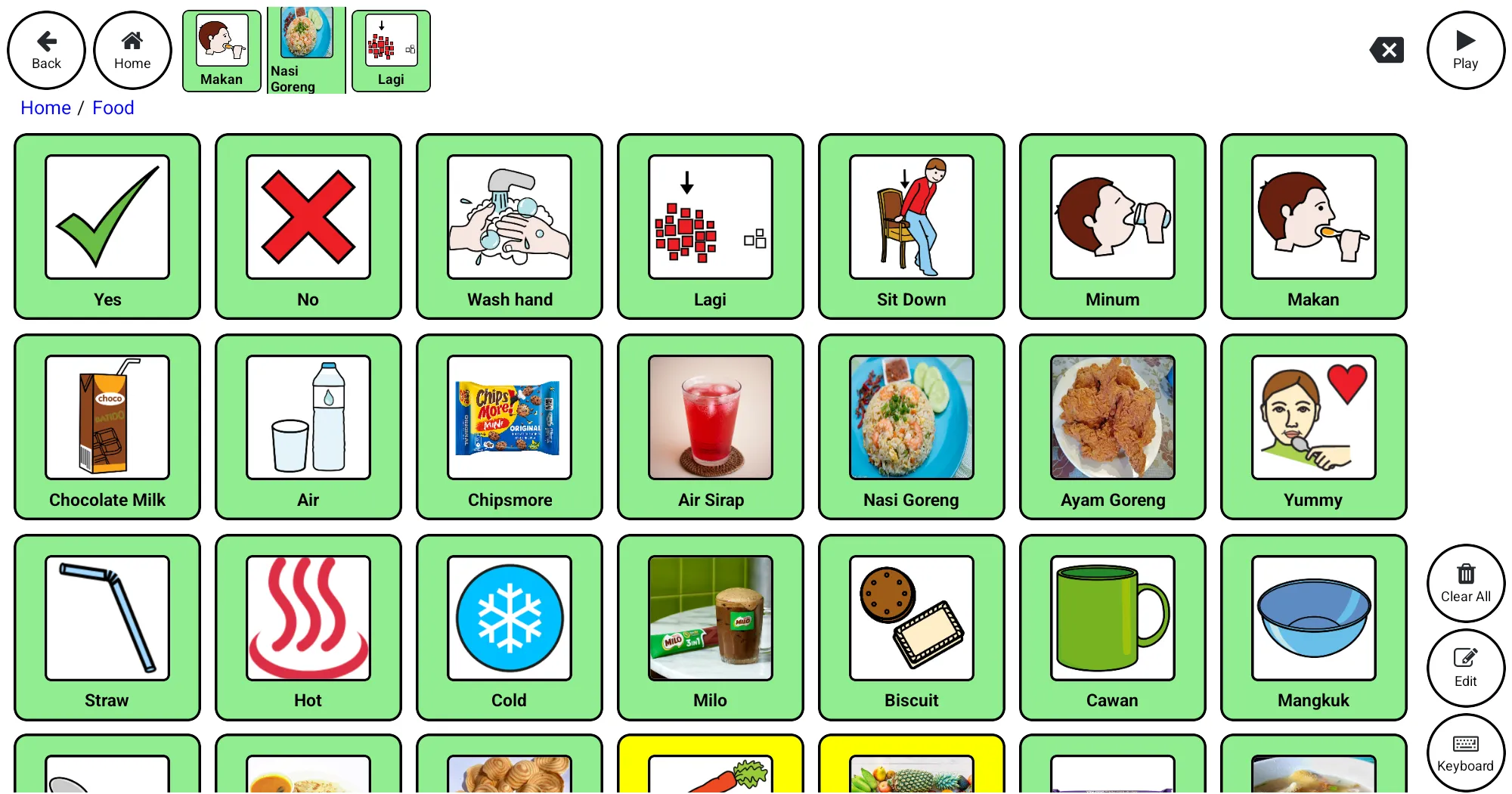
- Play says the whole sentence.
- Tap a word in the bar to hear just that word.
- The ⌫ button removes the last word. Press and hold it to remove them all.
- Clear All also empties the bar.
2. Edit mode
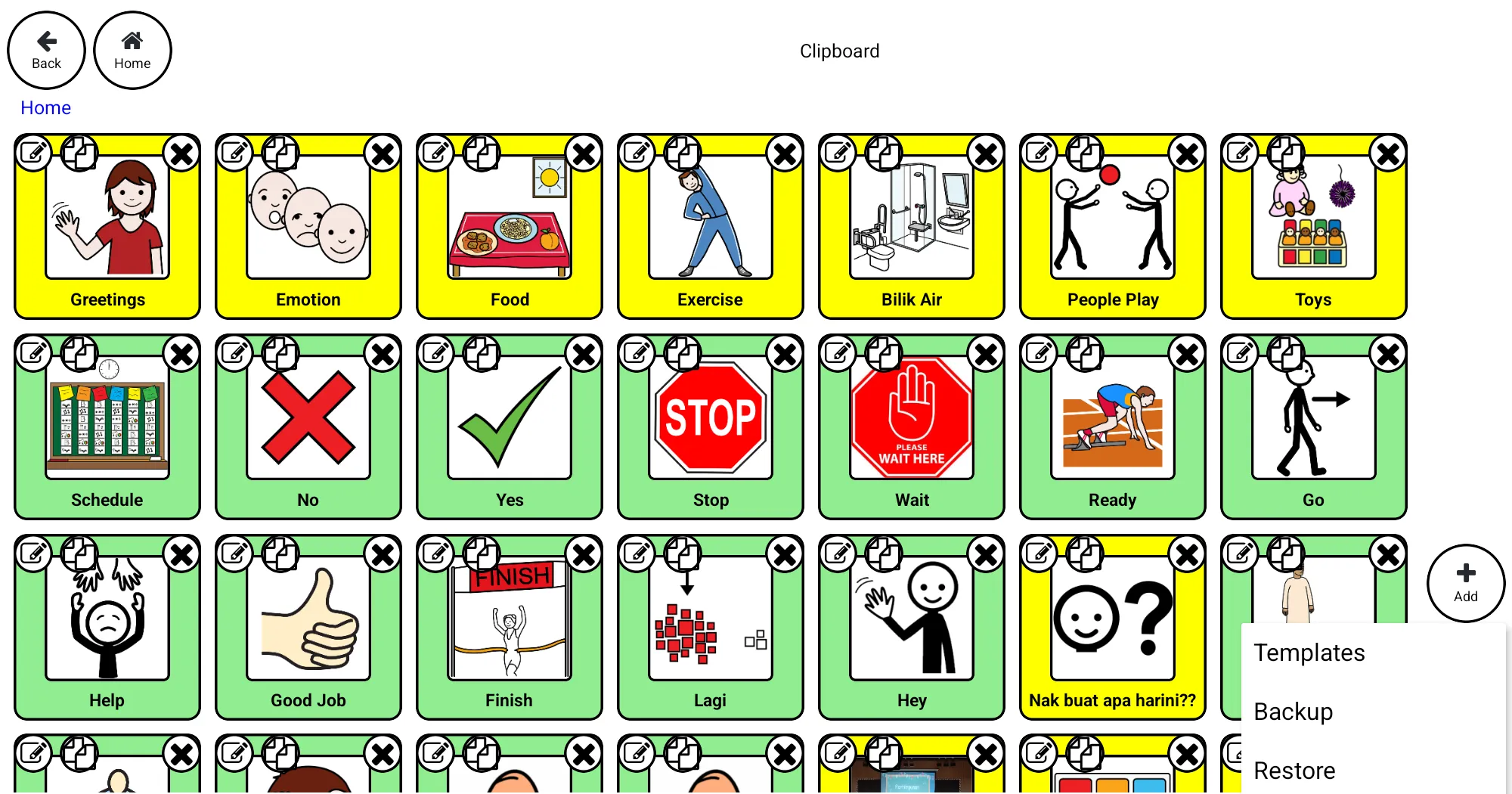
Changes happen in edit mode. Tap Edit to start. (Versions before 1.0.23 first ask you to type four numbers shown and tap Ok.)
In edit mode, each tile gets three small buttons:
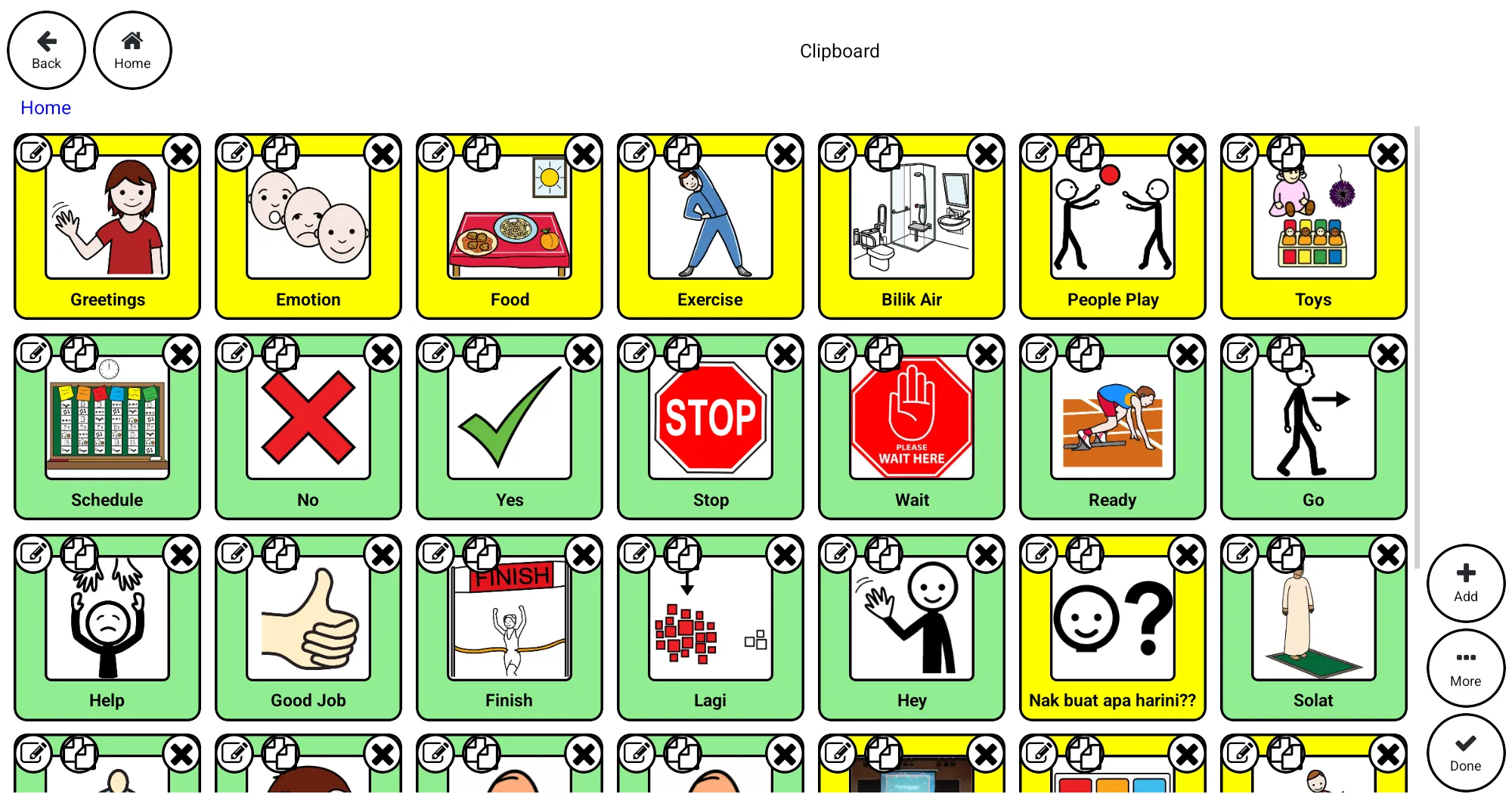
- Pencil: change the word (see below).
- Copy: puts the word in the Clipboard bar at the top. Open another folder and tap Paste to add a copy there. Copy several words and paste them together.
- X: deletes the word, or the folder and everything in it. There is no undo, so make abackup before big changes.
- Press and hold a tile, then drag it, to move it to a new place.
On the right: Add makes a new word in the folder you're in, More has Templates, Backup and Restore, and Done leaves edit mode.
3. Adding and changing words
Tap Add for a new word, or the pencil on a tile to change one. Both open the same screen:
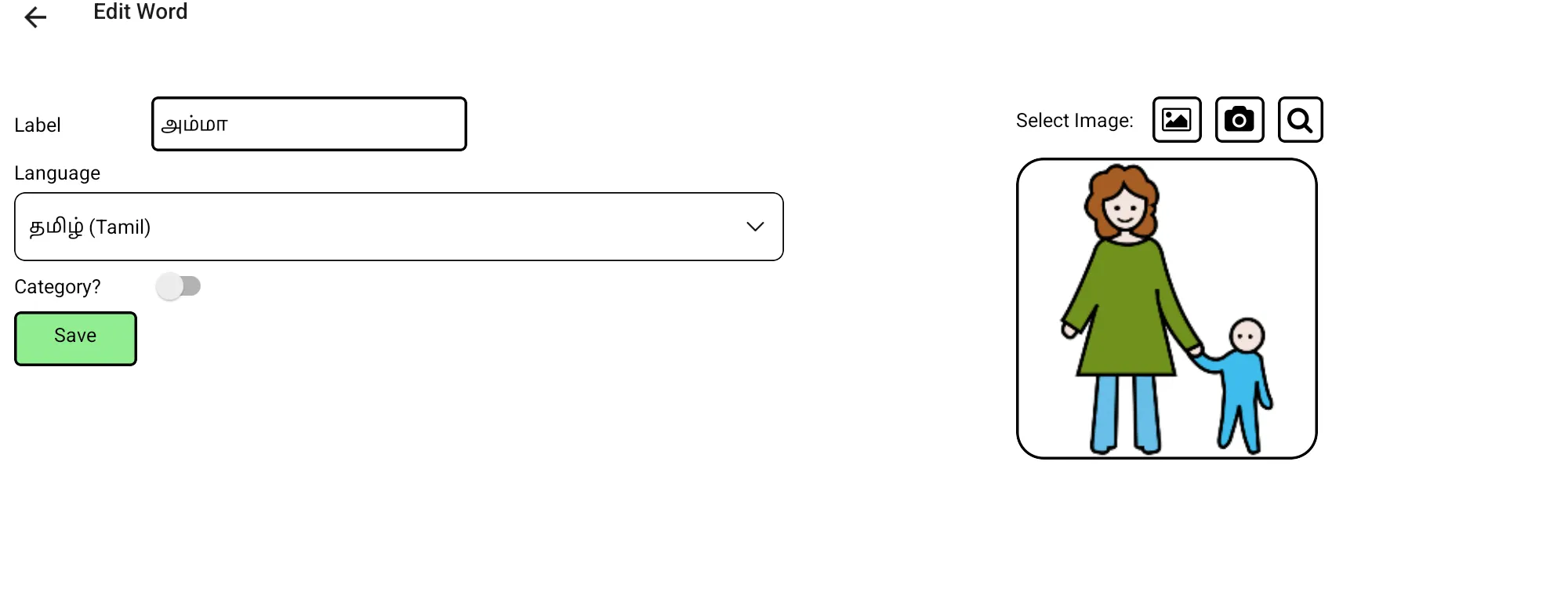
- Label: the word as it should be spoken and shown.
- Language: which voice reads it (see Languages and voices).
- Category? Switch on to make this tile a folder that can hold other words.
- Picture: the three buttons pick a photo from the device, take a new photo with the camera, or search the free symbol library. Photos of the child's own cup, food or family often work better than symbols.
Tap Save when you're done.
4. Languages and voices
GibTalk doesn't have its own voices. It uses the text-to-speech voices on your phone or tablet, so it can speak any language your device has a voice for, and each word can use a different language. A board can mix Malay, English, Tamil and Chinese, and a sentence switches voice from word to word.
Write words in the language's own script
The voice reads the letters it's given. A Tamil voice reads Tamil script, so write அம்மா, not Amma; the same goes for Chinese characters. A word typed in English letters but set to Tamil won't sound right. If you can't type the script, ask someone who can, or start from a template that already has it.
Choosing a word's language
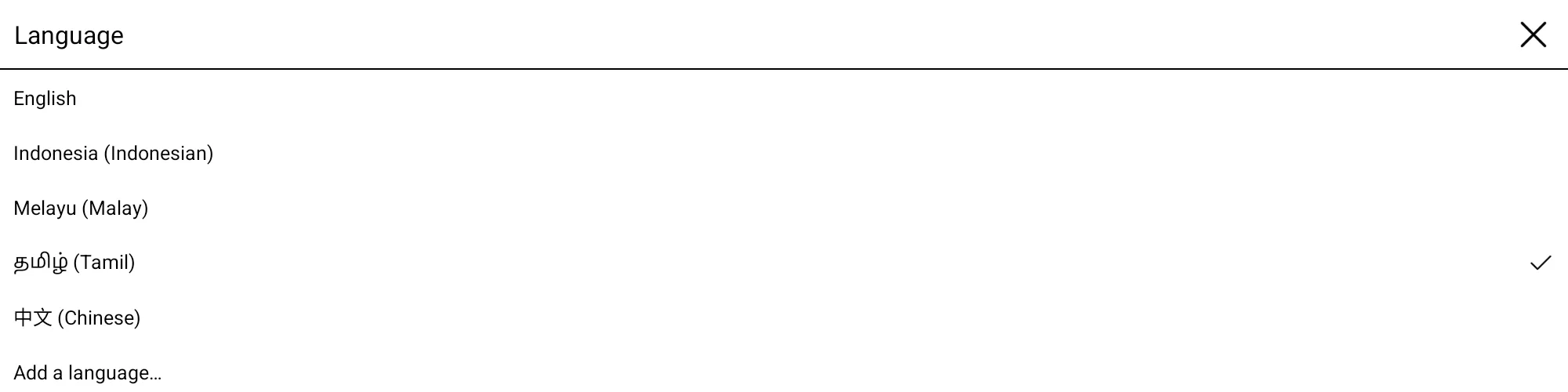
In the word screen, tap Language. The list shows the languages your device has a voice for. If yours isn't there, tap Add a language… to install a voice.
Installing a voice
When words use a language with no voice on the device, GibTalk says so and offers Install voice. Until a voice is installed, those words are read by another voice. The Edit button also shows a dot, and edit mode shows a reminder, until it's fixed.
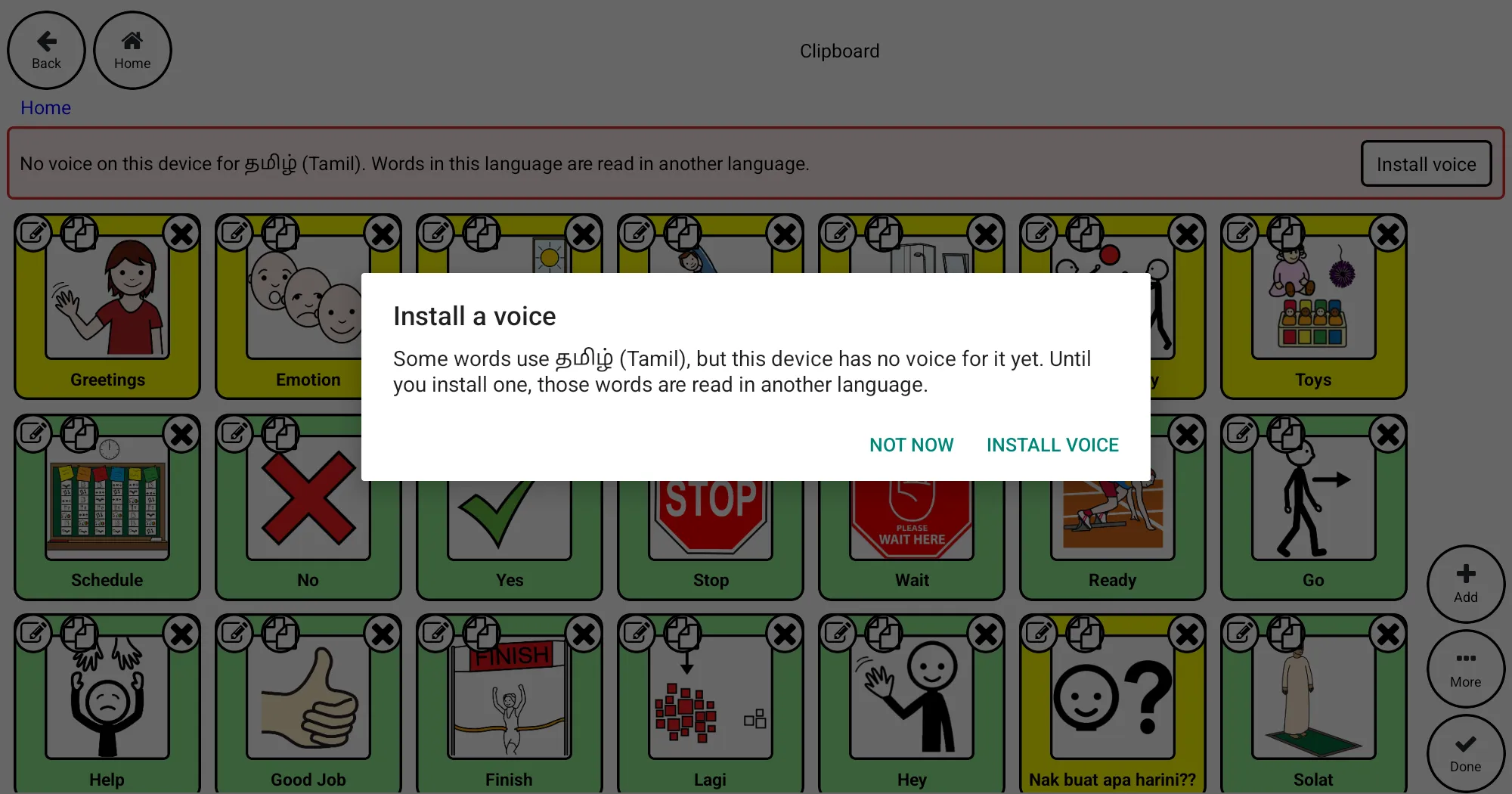
- Android: Install voice opens the voice list of your text-to-speech engine (usually Speech Services by Google). Find the language, for example Tamil (India), and download it (about 10 MB). Then come back to GibTalk. If the list doesn't open, go to Settings, search for "Text-to-speech output", open the settings of the preferred engine and install the voice data there.
- iPhone and iPad: Settings → Accessibility → Spoken Content → Voices, choose the language and download a voice. Apple doesn't offer a voice for every language; if yours isn't listed, the device can't speak it yet.
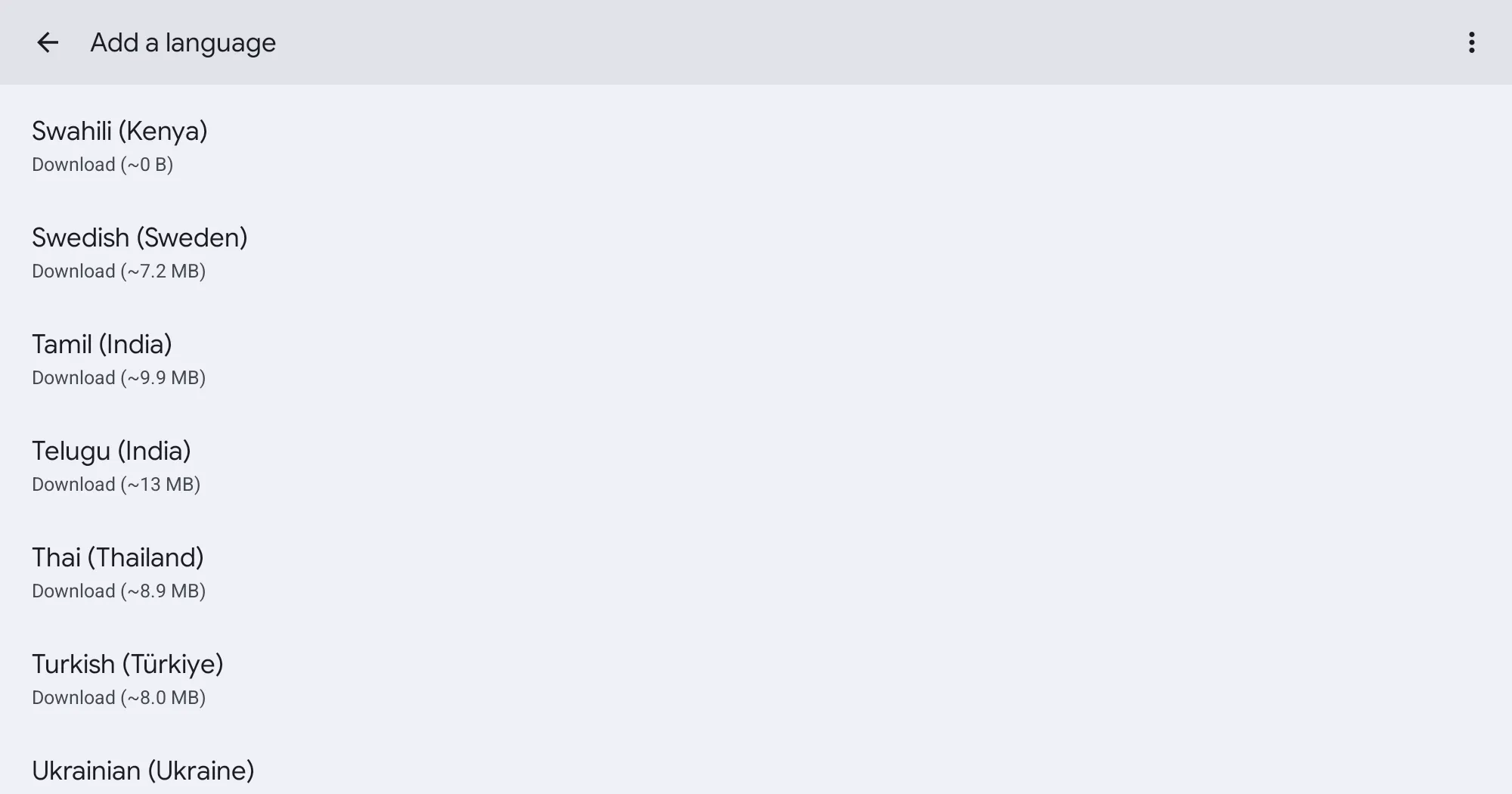
Example: trying Tamil
- In edit mode, tap More → Templates and choose வாழ்த்துகள் (Basic Greetings in Tamil).
- If GibTalk asks to install a voice, tap Install voice, download Tamil, and come back.
- Tap Done, open the new folder at the end of Home, and tap a word.
- To add your own Tamil words, tap Add, type the word in Tamil script, and set Language to தமிழ் (Tamil).
5. Typing with the keyboard
For anything that isn't on the board, tap Keyboard, type, and tap Play. The button beside the text picks the language (here ms for Malay). Words goes back to the pictures.

6. Templates
Templates are ready-made sets of words, such as greetings, mealtime, the playground, school or feelings, in English, Malay and Tamil. In edit mode, tap More → Templates and pick one. On a computer, you can see and print any of them in the template builder (Start from a template…).
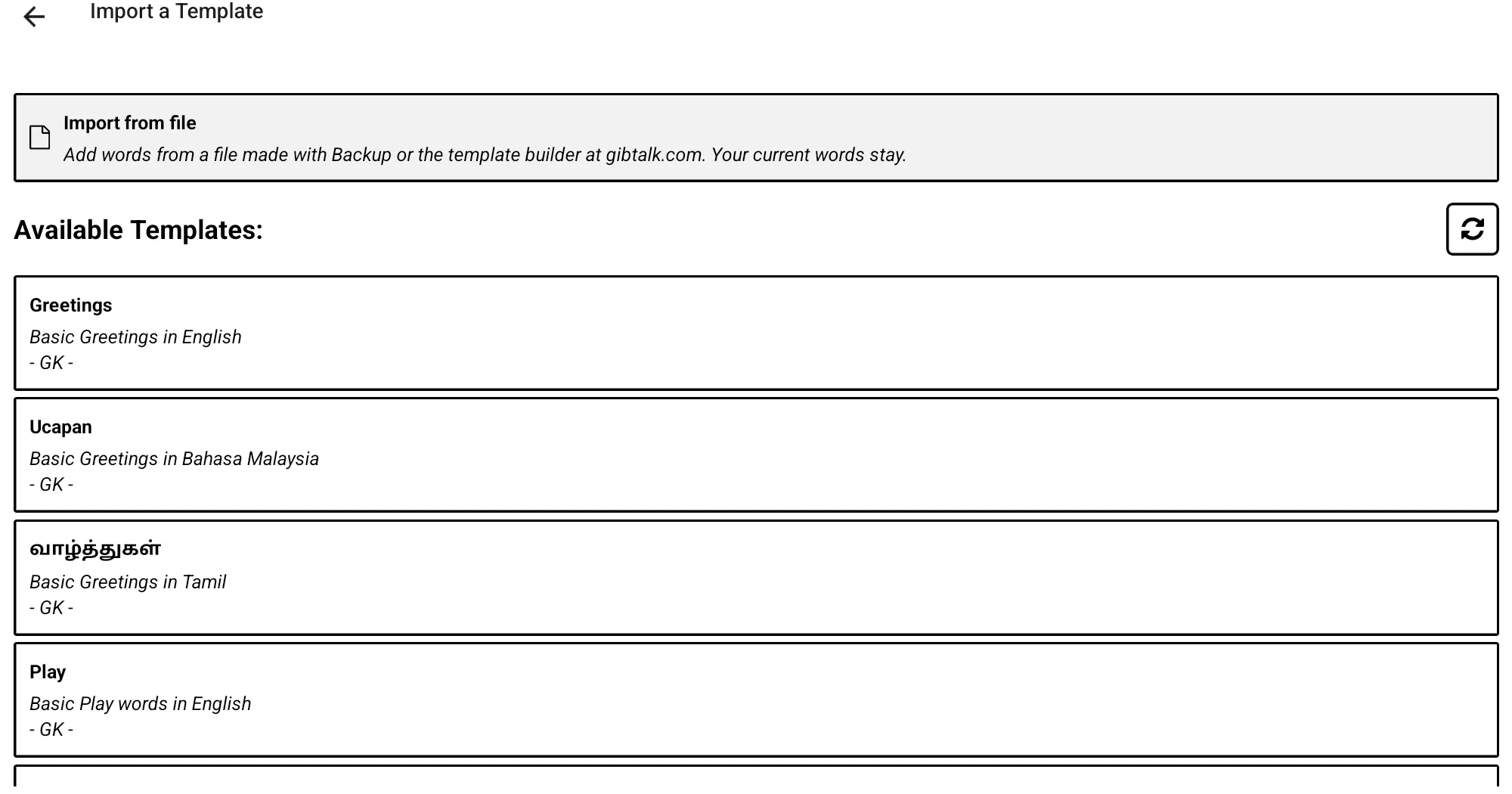
A template is added to your words, as a new folder at the end of Home; nothing you already have is changed.
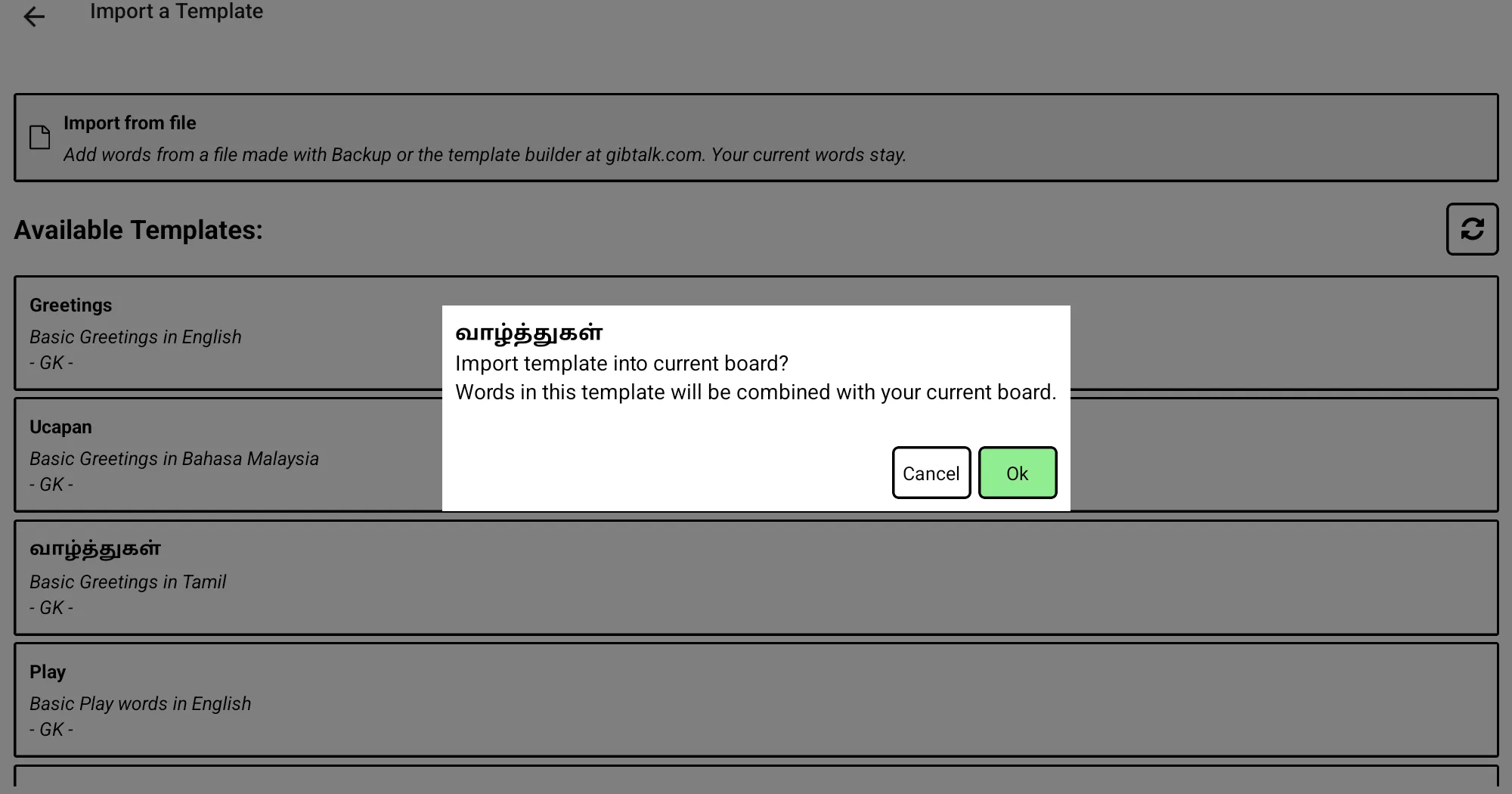
Import from file at the top of the same screen adds the words from a file: a backup, a set made in the template builder, or a file someone sent you.
7. Backup, restore and new devices
- Backup (More → Backup) makes one file with all your words and pictures and opens the share menu. Save it to your files, Google Drive or iCloud, or send it to yourself.
- Restore (More → Restore) opens a backup file and replaces every word on the device with the ones in the file.
- To add words from a file without losing what's there, use Templates → Import from file instead.
Moving to a new phone or tablet: make a backup on the old device, send the file to the new one, install GibTalk there, and restore it. Backups work between Android and iPhone/iPad.
GibTalk keeps everything on the device and has no account, so a backup is the only copy outside the device. Make one now and then, and before big changes.
8. Building and printing on a computer
The template builder works in a browser on a laptop or computer, with a bigger screen and a keyboard. It's handy for teachers and therapists preparing words for several children.
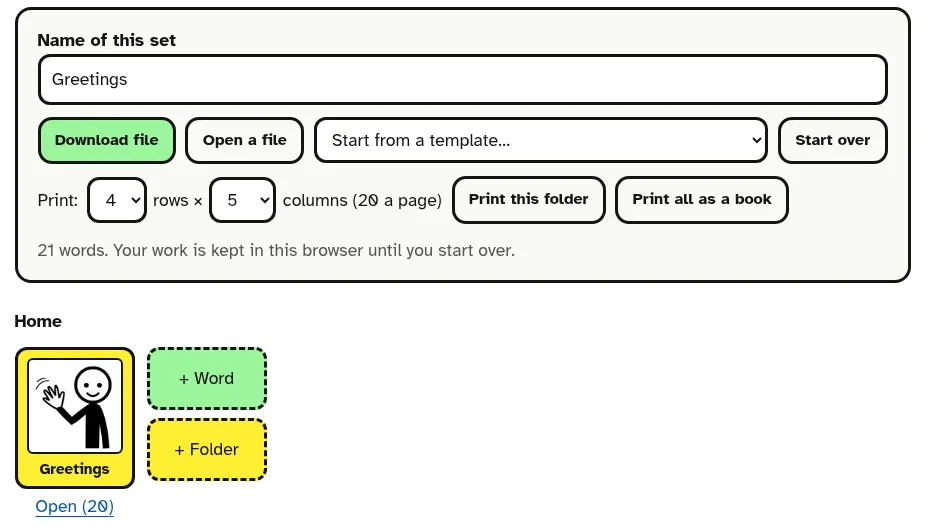
- Add words and folders, and pick symbols or upload photos, much like in the app. You can also start from a template or open a backup.
- Download file, send it to the device, and use Templates → Import from file (adds the words) or Restore (replaces all words).
- Printing: choose the rows and columns, for example 6 × 9 for a core board. Print this folder prints the folder on screen as one board; Print all as a book puts each folder on its own page, with page numbers to follow. Pages are A4 landscape, and the print window can save a PDF. Printed boards are useful in class, outdoors, or when the tablet is charging.
9. Tips for starting out
- Start small: a few words the child wants every day (eat, drink, toilet, help, more, stop), then add more as they're used.
- Put the most-used words on Home, and group the rest into folders by place or activity.
- Use the words yourself: tap them as you talk, so the child sees how the board works.
- Keep the same words in the same place, so they're easy to find.
- Make a backup once the board is set up.
Questions or a problem? See Support or email support@gibtalk.com.